Google Code Prettify

Create Mail Message With Attachment Example

 下列程式碼範例將示範如何建立和傳送含有附件的電子郵件訊息。

public static void CreateMessageWithAttachment(string server)
{
    // Specify the file to be attached and sent.
    // This example assumes that a file named Data.xls exists in the
    // current working directory.
    string file = "data.xls";
    // Create a message and set up the recipients.
    MailMessage message = new MailMessage(
        "jane@contoso.com",
        "ben@contoso.com",
        "Quarterly data report.",
        "See the attached spreadsheet.");

    // Create  the file attachment for this email message.
    Attachment data = new Attachment(file, MediaTypeNames.Application.Octet);
    // Add time stamp information for the file.
    ContentDisposition disposition = data.ContentDisposition;
    disposition.CreationDate = System.IO.File.GetCreationTime(file);
    disposition.ModificationDate = System.IO.File.GetLastWriteTime(file);
    disposition.ReadDate = System.IO.File.GetLastAccessTime(file);
    // Add the file attachment to this email message.
    message.Attachments.Add(data);

    //Send the message.
    SmtpClient client = new SmtpClient(server);
    // Add credentials if the SMTP server requires them.
    client.Credentials = CredentialCache.DefaultNetworkCredentials;

    try
    {
        client.Send(message);
    }
    catch (Exception ex)
    {
        Console.WriteLine("Exception caught in CreateMessageWithAttachment(): {0}",
            ex.ToString());
    }
    // Display the values in the ContentDisposition for the attachment.
    ContentDisposition cd = data.ContentDisposition;
    Console.WriteLine("Content disposition");
    Console.WriteLine(cd.ToString());
    Console.WriteLine("File {0}", cd.FileName);
    Console.WriteLine("Size {0}", cd.Size);
    Console.WriteLine("Creation {0}", cd.CreationDate);
    Console.WriteLine("Modification {0}", cd.ModificationDate);
    Console.WriteLine("Read {0}", cd.ReadDate);
    Console.WriteLine("Inline {0}", cd.Inline);
    Console.WriteLine("Parameters: {0}", cd.Parameters.Count);
    foreach (DictionaryEntry d in cd.Parameters)
    {
        Console.WriteLine("{0} = {1}", d.Key, d.Value);
    }
    data.Dispose();
}

ASP.NET Send mail example code


using System;
using System.Data;
using System.Configuration;
using System.Web;
using System.Web.Security;
using System.Web.UI;
using System.Web.UI.WebControls;
using System.Web.UI.WebControls.WebParts;
using System.Web.UI.HtmlControls;
using System.Net.Mail;

public partial class _Default : System.Web.UI.Page
{
  protected void Page_Load(object sender, EventArgs e)
  {

  }

  protected void btnSubmit_Click(object sender, EventArgs e)
  {
    try
    {
      MailAddress SendFrom = new MailAddress(txtFrom.Text);
      MailAddress SendTo = new MailAddress(txtTo.Text);

      MailMessage MyMessage = new MailMessage(SendFrom, SendTo);

      MyMessage.Subject = txtSubject.Text;
      MyMessage.Body = txtBody.Text;

      Attachment attachFile = new Attachment(txtAttachmentPath.Text);
      MyMessage.Attachments.Add(attachFile);

      SmtpClient emailClient = new SmtpClient(txtSMTPServer.Text);
      emailClient.Send(MyMessage);

      litStatus.Text = "Message Sent";
    }
    catch (Exception ex)
    {
      litStatus.Text = ex.ToString();
    }
  }
}

example for lauch pdf and send pdf in MVC4 C# Controller

 example for lauch pdf and send pdf in MVC4 C# Controller


        public void ToPdf(string uco, int idAudit)
    {
        Response.Clear();
        Response.ContentType = "application/octet-stream";
        Response.AddHeader("content-disposition", "attachment;filename= Document.pdf");
        Response.Buffer = true;
        Response.Clear();

        //get the memorystream pdf
        var bytes = new MisAuditoriasLogic().ToPdf(uco, idAudit).ToArray();

        Response.OutputStream.Write(bytes, 0, bytes.Length);
        Response.OutputStream.Flush();

    }


    public ActionResult ToMail(string uco, string filter, int? page, int idAudit, int? full) 
    {
        //get the memorystream pdf
        var bytes = new MisAuditoriasLogic().ToPdf(uco, idAudit).ToArray();

        using (var stream = new MemoryStream(bytes))
        using (var mailClient = new SmtpClient("**YOUR SERVER**", 25))
        using (var message = new MailMessage("**SENDER**", "**RECEIVER**", "Just testing", "See attachment..."))
        {

            stream.Position = 0;

            Attachment attach = new Attachment(stream, new System.Net.Mime.ContentType("application/pdf"));
            attach.ContentDisposition.FileName = "test.pdf";

            message.Attachments.Add(attach);

            mailClient.Send(message);
        }

        ViewBag.errMsg = "Documento enviado.";

        return Index(uco, filter, page, idAudit, full);
    }

Attach a file from MemoryStream to a MailMessage in C#

Text file
System.IO.MemoryStream ms = new System.IO.MemoryStream();
System.IO.StreamWriter writer = new System.IO.StreamWriter(ms);
writer.Write("Hello its my sample file");
writer.Flush();
writer.Dispose();
ms.Position = 0;

System.Net.Mime.ContentType ct = new System.Net.Mime.ContentType(System.Net.Mime.MediaTypeNames.Text.Plain);
System.Net.Mail.Attachment attach = new System.Net.Mail.Attachment(ms, ct);
attach.ContentDisposition.FileName = "myFile.txt";

// I guess you know how to send email with an attachment
// after sending email
ms.Close();  
PDF file
System.IO.MemoryStream ms = new System.IO.MemoryStream();
System.IO.StreamWriter writer = new System.IO.StreamWriter(ms);
writer.Write("Hello its my sample file");
writer.Flush();
writer.Dispose();
ms.Position = 0;

System.Net.Mime.ContentType ct = new System.Net.Mime.ContentType(System.Net.Mime.MediaTypeNames.Application.PDF);
System.Net.Mail.Attachment attach = new System.Net.Mail.Attachment(ms, ct);
attach.ContentDisposition.FileName = "myFile.pdf";

// I guess you know how to send email with an attachment
// after sending email
ms.Close();
Excel file
System.IO.MemoryStream ms = new System.IO.MemoryStream();
System.IO.StreamWriter writer = new System.IO.StreamWriter(ms);
writer.Write("Hello its my sample file");
writer.Flush();
writer.Dispose();
ms.Position = 0;

System.Net.Mime.ContentType ct = new System.Net.Mime.ContentType(System.Net.Mime.MediaTypeNames.Application.Octet);
System.Net.Mail.Attachment attach = new System.Net.Mail.Attachment(ms, ct);
attach.ContentDisposition.FileName = "myFile.xlsx";
attachment.ContentDisposition.Size = attachment.Length;

// I guess you know how to send email with an attachment
// after sending email
ms.Close(); 

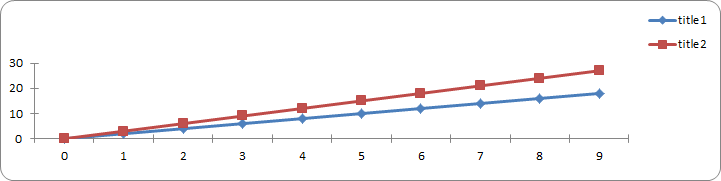
NPOI 中繪製Chart

 NPOI 在新版本中增加了對圖表的有限支持(僅 xlsx 文件)

項目地址: https://github.com/tonyqus/npoi

支持折線圖和散點圖

來看demo :

1
2
3
4
5
6
7
8
9
10
11
12
13
14
15
16
17
18
19
20
21
22
23
24
25
26
27
28
29
30
31
32
33
34
35
36
37
38
39
40
41
42
43
44
45
46
47
48
49
50
51
52
53
54
55
56
57
58
59
60
61
62
63
64
65
66
67
68
69
70
71
const int NUM_OF_ROWS = 3;
      const int NUM_OF_COLUMNS = 10;
 
     static void CreateChart(IDrawing drawing, ISheet sheet, IClientAnchor anchor, string serie1, string serie2)
   {
       var chart = drawing.CreateChart(anchor) as XSSFChart;  
      //生成图例
       var legend = chart.GetOrCreateLegend();
  //图例位置
       legend.Position = LegendPosition.TopRight;
        
      //图表
       var data = chart.ChartDataFactory.CreateLineChartData<double, double>(); //折线图
  //var data = chart.ChartDataFactory.CreateScatterChartData<double, double>(); //散点图
 
       // X轴.
       var bottomAxis = chart.ChartAxisFactory.CreateCategoryAxis(AxisPosition.Bottom);           
       bottomAxis.IsVisible = false; //默认为true 不显示  设置为fase 显示坐标轴(BUG?)
        
       //Y轴
       IValueAxis leftAxis = chart.ChartAxisFactory.CreateValueAxis(AxisPosition.Left);
       leftAxis.Crosses = (AxisCrosses.AutoZero);
       leftAxis.IsVisible = false; //设置显示坐标轴
 
       //数据源
       IChartDataSource<double> xs = DataSources.FromNumericCellRange(sheet, new CellRangeAddress(0, 0, 0, NUM_OF_COLUMNS - 1));
        
       IChartDataSource<double> ys1 = DataSources.FromNumericCellRange(sheet, new CellRangeAddress(1, 1, 0, NUM_OF_COLUMNS - 1));
       IChartDataSource<double> ys2 = DataSources.FromNumericCellRange(sheet, new CellRangeAddress(2, 2, 0, NUM_OF_COLUMNS - 1));
        
       //数据系列
       var s1 = data.AddSeries(xs, ys1);
       s1.SetTitle(serie1);
       var s2 = data.AddSeries(xs, ys2);
       s2.SetTitle(serie2);
 
 
       chart.Plot(data, bottomAxis, leftAxis);         
        
   }
 
   static void Main(string[] args)
   {
       IWorkbook wb = new XSSFWorkbook();
       ISheet sheet = wb.CreateSheet("linechart");
 
       // Create a row and put some cells in it. Rows are 0 based.
       IRow row;
       ICell cell;
       for (int rowIndex = 0; rowIndex < NUM_OF_ROWS; rowIndex++)
       {
           row = sheet.CreateRow((short)rowIndex);
           for (int colIndex = 0; colIndex < NUM_OF_COLUMNS; colIndex++)
           {
               cell = row.CreateCell((short)colIndex);
               cell.SetCellValue(colIndex * (rowIndex + 1));
           }
       }
 
       IDrawing drawing = sheet.CreateDrawingPatriarch();
       //锚点
       IClientAnchor anchor1 = drawing.CreateAnchor(0, 0, 0, 0, 0, 5, 10, 15);
       CreateChart(drawing, sheet, anchor1, "title1","title2");
       IClientAnchor anchor2 = drawing.CreateAnchor(0, 0, 0, 0, 0, 20, 10, 35);
       CreateChart(drawing, sheet, anchor2, "s1", "s2");
       using (FileStream fs =File.Create("test.xlsx"))
       {
           wb.Write(fs);
       }
 
   }


很多特性都還不支持,這是比較難受的.將就用吧


From: https://www.cnblogs.com/sstn/p/9435337.html